Managing drivers (sending them access for Roadie)
Drivers only get access to Roadie and cannot access the main VideMatics platform. Users can use the same email address for VideMatics and Roadie, but each account is separate.
Login to VideMatics with the correct access permissions.
Open the Settings page.
Click Manage Drivers.
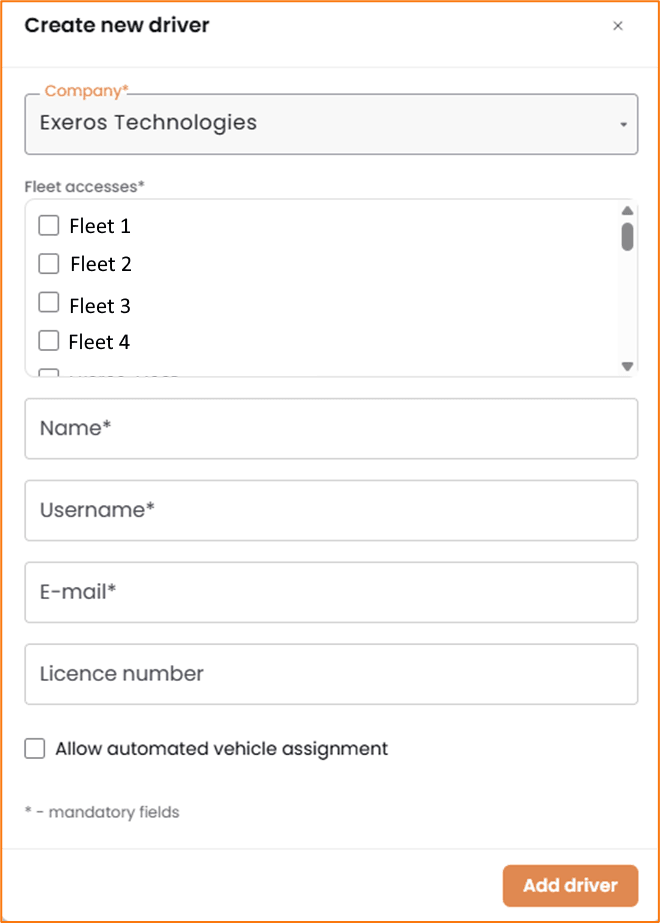
Click Create New Driver.
Fill in the details – it’s usually good practice to use the email address as the username.
Click Add Driver to finish. The driver will receive an email with a link to setting their own password.
Additional Features
Reset Password – this will send the driver an email asking them to reset their password.
Add Unique ID – to add an ID such as Tacho or BLE tag.
Release Vehicle – force the release of a vehicle assigned to them (the driver will need to re-assign themselves to this or another vehicle).
Delete – to delete the user
Add Unique ID
This allows you to connect a driver to a Bluetooth beacon or Tacho ID. This is currently only available with Telematics enabled systems. With this function enabled, if this beacon/tag is seen by the telematics device, that driver will be auto-assigned.
Click add unique ID
Search for or select the unique ID to tag to this driver (the tag/ID must have been detected by one of our systems to be available here).
Click Save
Automated vehicle assignment allows drivers to be auto-assigned to vehicles based on GPS position (i.e. if their phone and a vehicle take the same route, the vehicles auto-assigned to the driver). The default is off.
Was this article helpful?
That’s Great!
Thank you for your feedback
Sorry! We couldn't be helpful
Thank you for your feedback
Feedback sent
We appreciate your effort and will try to fix the article