Open the Play page
This page is where you can view live streams and access historic footage.
Select the vehicle you would like to access
Online vehicles will be shown at the top of the list. You can filter vehicles by registration plate within the “advanced filters” section. Each vehicle is listed within a “vehicle card” showing with current location, speed and driver.
Click View playback from the vehicle you would like to access
This will open the Playback page from where you can select historic footage.
Note: you can only request footage from vehicles that are online and only if the footage is still available on the camera storage.
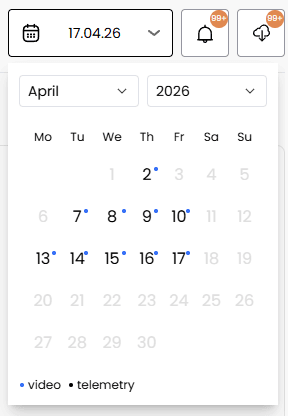
Select the date from the calendar
Dates for where there are footage available will be in bold. Dates with no footage are in a lighter colour and cannot be selected.
Select the time or location for where footage is required
Time: To select a time, click on the corresponding time on the time bar.
Location: Click on the required location on the map.

Click Create clip to create the download task
Download: create a download task and add it to the download queue (top right).
Share: to create a link to a share the clip with other users
Change to Event: to create an event within the events page so that it can be accessed by all authorised users.
Create Download Task
Creating a download task will request footage from the camera. This footage will be available to download once processed.
Choose the beginning of the clip on the timeline
A green line will appear where you have selected. This is the start of where you want the clip.

Fill in the details on the form and remember to select which camera(s)
Give the clip a name for your records (this name will appear on the download tasks dropdown).
Select the format (mp4 is usually best for sharing).
Select which video stream (high quality is best for most requests although can take longer to retrieve)
Edit the start time if required.
Select the video duration
Select camera(s).
Click download. This will add a task to the queue.
Download the task once completed (you will also receive an email when the task is completed)
You can see the status of the task in the download dropdown. Once ready to download you can select the clip, and the files will be download to your computer.

Was this article helpful?
That’s Great!
Thank you for your feedback
Sorry! We couldn't be helpful
Thank you for your feedback
Feedback sent
We appreciate your effort and will try to fix the article